Missing GTIN (Global Trade Item Number) errors in Google Merchant Center can significantly hinder your product visibility and lead to disapprovals. Without proper identifiers, your products may not display in search results, resulting in lost traffic and potential sales. Understanding the root causes and how to address them is crucial for any SMB e-commerce merchant.
What Causes the Issue
The primary reasons for missing GTIN errors often stem from data quality issues. Common causes include:
- Incomplete Product Attributes: Failing to provide essential identifiers like GTIN, UPC, or EAN.
- Inconsistent Formatting: Variations in how identifiers are presented can trigger errors.
- Data Feed Errors: Issues in the product feed itself, such as incorrect mappings or missing fields.
How to Diagnose It
Diagnosing missing GTIN errors requires checking your Google Merchant Center account for alerts or notifications. Follow these steps:
- Log in to your Google Merchant Center.
- Navigate to the 'Products' section and look for any alerts regarding product identifiers.
- Click on the affected products to see specific error messages and identify which GTINs are missing.
Step-by-Step Fix
Once you identify the missing GTINs, follow these steps to address the issue:
Gather the necessary GTINs for your products, ensuring that they are correct and up-to-date.
Update your product feed to include the missing GTINs. Ensure that the format is consistent across all entries.
Resubmit your product feed through the Google Merchant Center.
Monitor the feed status to ensure the errors have been resolved. It may take 24-48 hours for Google to process the updates.
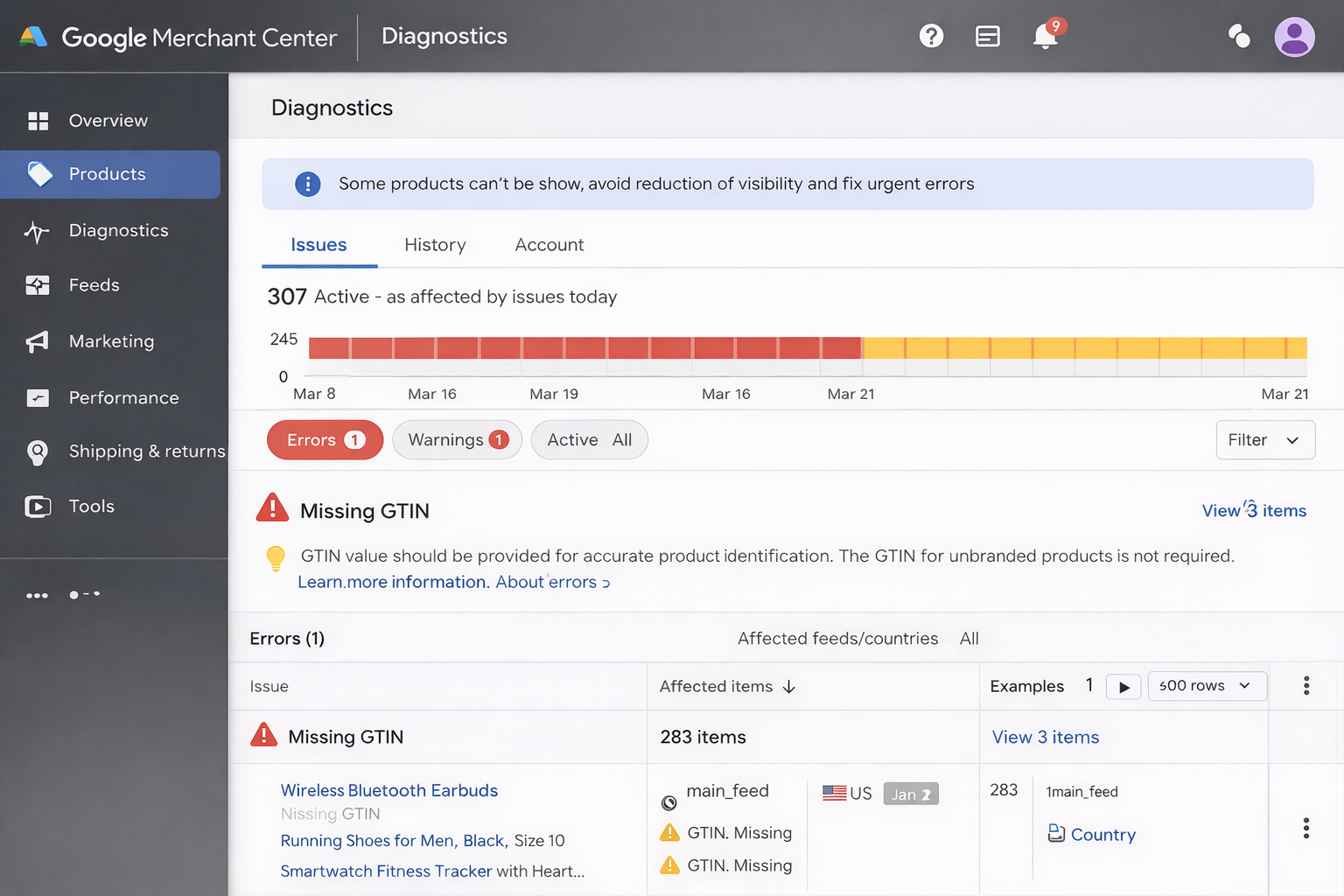
As shown in the screenshot above, the error message indicates the specific products lacking GTINs. Ensuring these identifiers are added will help resolve the issue.

This second screenshot illustrates the successful identification and rectification of GTIN errors during the product feed optimization process.
How to Prevent Recurrence
To avoid future missing GTIN errors, implement the following practices:
- Regularly Audit Your Product Feed: Schedule periodic checks to ensure all product identifiers are present and correctly formatted.
- Utilize Data Validation Tools: Employ tools that validate your product feed before submission to catch errors early.
- Stay Updated on Google Policies: Monitor Google Merchant Center updates for any changes to product data requirements.
Where Automation / Cartozo Helps
Handling product feeds manually can be time-consuming, especially for merchants with a large inventory. This is where Cartozo.ai comes in. By automating the product feed optimization process, Cartozo simplifies the management of GTINs and other essential identifiers. With structured CSV processing and data enrichment features, you can ensure clean, consistent data that minimizes errors. This leads to better performance and improved visibility in Google Merchant Center.
In conclusion, addressing missing GTIN issues in Google Merchant Center is critical for maintaining product visibility and driving traffic. By following the outlined steps and leveraging tools like Cartozo.ai, you can streamline your product feed management and avoid future errors. For more insights on product feed optimization, check our related articles:
- How to Fix Google Merchant Center Disapprovals for E-commerce
- The Importance of Real-Time Product Feed Updates for E-commerce Success
- Understanding the Impact of Product Feed Errors on Conversion Rates
For further assistance, consider trying out Cartozo.ai to enhance your product feed's performance.
Start optimizing your feed now!